Defining Related Topics
Related topics provide a list of other topics that may be of interest to the user of the current topic. For example, you could have a section called Creating Web Pages in your help. You may also have many other topics, such as HTML Tags and Cascading Style Sheets, that relate to creating Web pages. Identifying these related topics for users can help them find the information they need and identify additional topics to consider. However, providing these types of links as cross references within the content itself may not be the most efficient way to present the information.
Related topics and See Also links provide similar capabilities, but there are several important differences:
Related topics can link to headings in a help set that do not start a new page.
Related topics links are static and defined in the source documents as links. You must have all the source documents to create the link and generate the output.
If a related topics list contains a broken link in the source document, that link is broken in the generated output. In a See Also link list, the broken link is not included in the output.
You can configure related topics to be displayed in the following ways:
Included as a list in the topic itself.
Displayed in a popup window when the user clicks a button, as shown in the following figure.
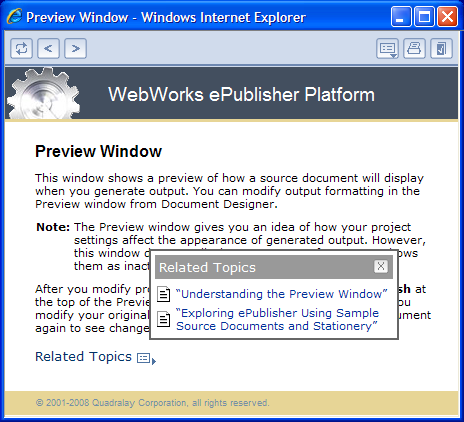
Note: If a related topic link is broken in the source document, in most cases that link is broken in the generated output. WebWorks Help and WebWorks Reverb provide an additional feature by removing broken links from related topics lists that are displayed in a popup window when a user clicks the Related Topics button.
Using a Paragraph Style for Related Topics Lists
You can use a paragraph style to define a related topics list. Create a unique paragraph style to use specifically for the related topics list items. The writer should create a list of links in a topic in the source document, and apply the paragraph style to each list item.
Open your Stationery design project.
On the View menu, click Style Designer.
On the Project menu, click a target in the Active Target menu option that is an output format that supports this option.
In Paragraph Styles, select the paragraph style you want to define as the related topics list. This paragraph style is applied to all paragraphs in a related topics list.
On the Options tab, select the appropriate value for the Related topic option. For more information about this option, click Help.
To display the list of related topics in the body of the topic, select Define.
To display the list of related topics only when the Related Topics button is clicked, select Define with no output.
Note: The Show related topics inline button and the Show related topics toolbar button target settings specify whether to include related topics buttons and where to include them. If you select Define for your related topics paragraph style and you enable the Show related topics inline button setting, both the list of related topics and the related topics button itself are displayed in the topics with related topics.